
Most firm users People employed by, or who represent, the firm that is providing the portal. Firm users are created by firm administrators. and some portal users have access to multiple portals. If you have access to multiple portals, you must select the portal that you want to work with. You can find a specific portal by doing the following:
- Click the Recent Portals tab in the navigation panel.
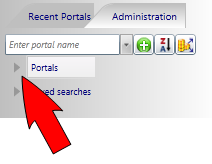
- Click the arrow next to the Portals label to expand the recent portals list. This list includes up to 50 of the most recently accessed portals. Only portals that you have permission to access display.
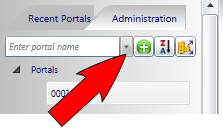
- To search for a portal that is not listed, click the search selection button that displays next to the text box on the Recent Portals tab. Then, select the type of search you want to perform.
- Once you have located the portal name on the Recent Portals list, click the portal name. The Files and Folders section is updated to reflect the contents of the selected portal.
 to add the portal to the Recent Portals list.
 . The search results display in a list below the text box.