Footnote information is entered in the General > Notes worksheet for federal, state, and city returns and is included in the Statements page of the printed return.
For tax years 2015 and higher, the Footnote editor includes features similar to other text editors, such as Notepad. The Footnote editor includes three components; the button bar, the Footnote pane that is used to enter text, and the Amount grid that is used to enter numeric values.
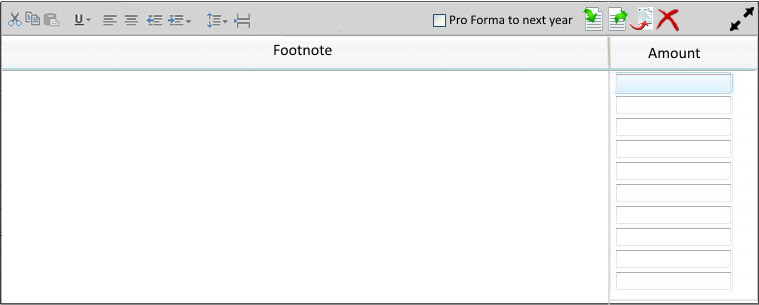
Entering Text and Amounts
You can create a footnote by doing any of the following:
- Manually typing information.
- Pasting information that is copied from a source file.
- Importing information from a source file.
Caution: Enter amounts beside the line of text they relate to.
Notes:
- Text that exceeds 60 characters (53 characters for Employee Benefit Plan returns) will wrap to the next line.
- There is no limit to the length of a footnote.
- You cannot paste data in the Footnote pane and Amounts grid simultaneously. Text and amounts must be pasted separately.
Inserting Footnote Annotations
You can insert one tick mark and one note for each occurrence of the Footnote pane and one tick mark, one note, and one list in any line of the Amount grid. You can also flag numeric values in the Amount grid as estimates. Annotations in the Footnote pane display on the first line and can be rolled forward.
Using Button Bar Features
The availability of some button bar features depends on whether you are entering text or amounts.
Using Button Bar Features
The availability of some button bar features depends on whether you are entering text or amounts.
| Feature | Icon | Description | Available for | |
|---|---|---|---|---|
| Text | Amounts | |||
| Cut |

|
Removes and copies the selected text or amount so it can be pasted in another location. |

|
|
| Copy |

|
Copies the selected text or amount so it can be pasted in another location. |
|
|
| Paste |

|
Adds text or an amount that was copied from another location. Note: Any special formatting in the source location will not be added. |
|
|
| Underline |

|
Underlines the selected amount. You can add a single or a double underline to indicate subtotals and grand total. |
|
|
| Align left |

|
Aligns selected text to the left. |
|
|
| Center |

|
Centers the selected text. |
|
|
| Increase indent |

|
Increases the indentation level of a paragraph. |
|
|
| Decrease indent |

|
Decreases the indentation level of a paragraph. |
|
|
| Line spacing |

|
Increases the spacing between lines or paragraphs. Tip: To break wrapped text, press Enter at the desired break point. Line spacing moves the entire line of text. |
|
|
| Page break |

|
Starts the next page at the selected location to create a shorter footnote page. A dotted line is inserted to represent the page break. Note: To delete a page break, select the dotted line and press Delete. |
|
|
| Pro Forma to next year |

|
Rolls forward footnote text to the next tax year. Footnote amounts are not rolled forward. |
|
|
| Import |

|
Imports text or amounts from an Excel® spreadsheet. Note: Any special formatting in the Excel spreadsheet will not be imported. |
|
|
| Export |

|
Exports text or amounts to an Excel® spreadsheet. |
|
|
| Insert |

|
Inserts a blank line above the selected line. |
|
|
| Delete |

|
Deletes the selected text or amount. |
|
|
| Expand |

|
Expands the Footnote editor to a full page of 53 lines. |
|
|
| Collapse |

|
Collapses the Footnote editor to the default height of 10 lines. |
|
|